
This article was translated by AI using Gemini 2.5 Pro from the original Chinese version. Minor inaccuracies may remain.
Compiler Explorer is a very popular online C++ compiler, which can be used to test different compilation and execution environments, or to share code. As a C++ enthusiast, I interact with it almost every day, and its frequency of use far exceeds my imagination. At the same time, I am also a heavy VSCode user, completing almost everything within VSCode. Considering that I often write code locally and then copy it to Compiler Explorer, it always felt uncomfortable. Sometimes I would directly modify it on its web editor, but without code completion, that was also uncomfortable. Therefore, I collaborated with @iiirhe to write this extension Compiler Explorer for VSCode, which integrates Compiler Explorer into VSCode based on the API provided by Compiler Explorer, allowing users to directly use Compiler Explorer’s features within VSCode.
You can now search for this extension in the VSCode Marketplace.

Demo
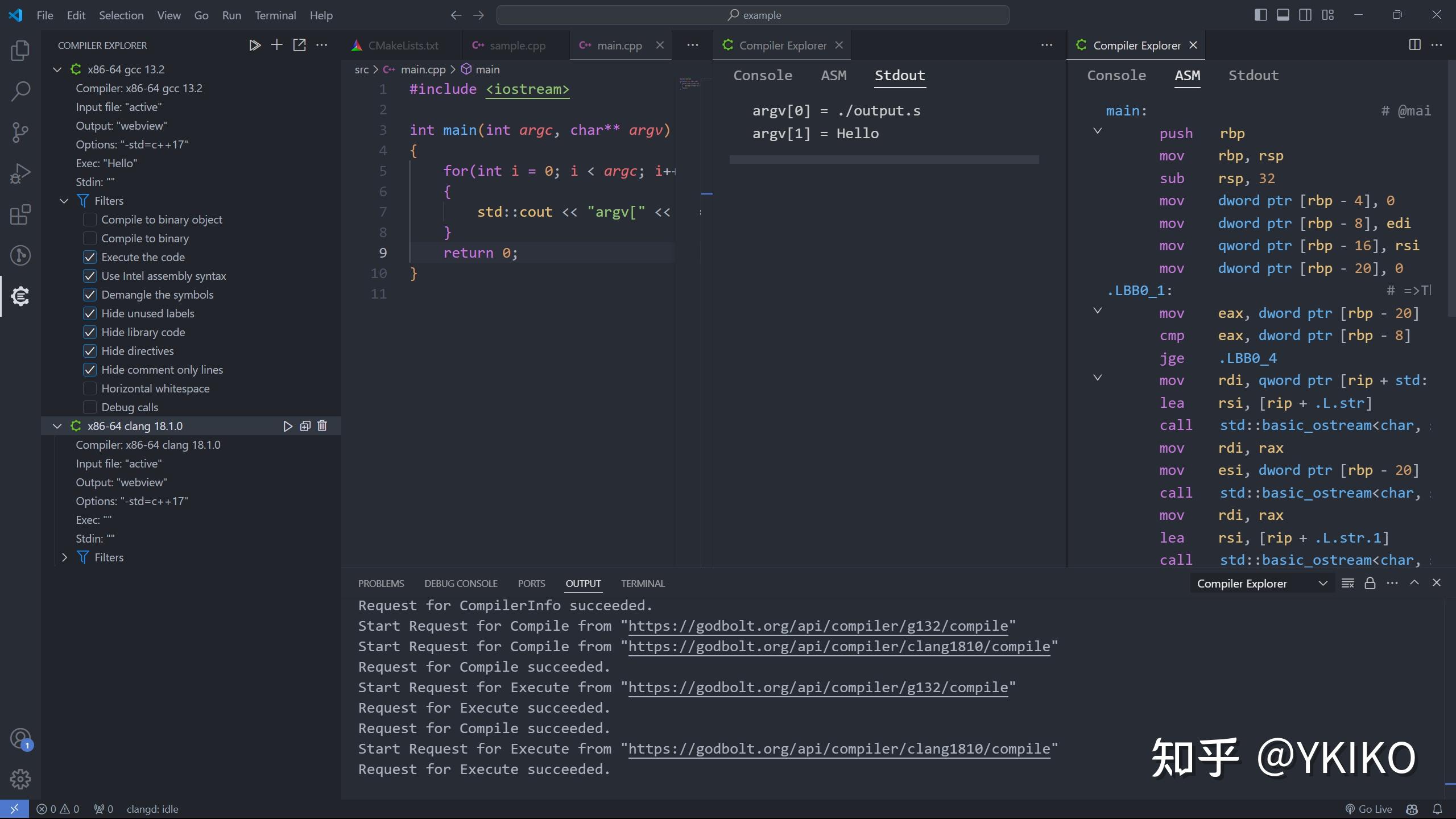
Single File Support
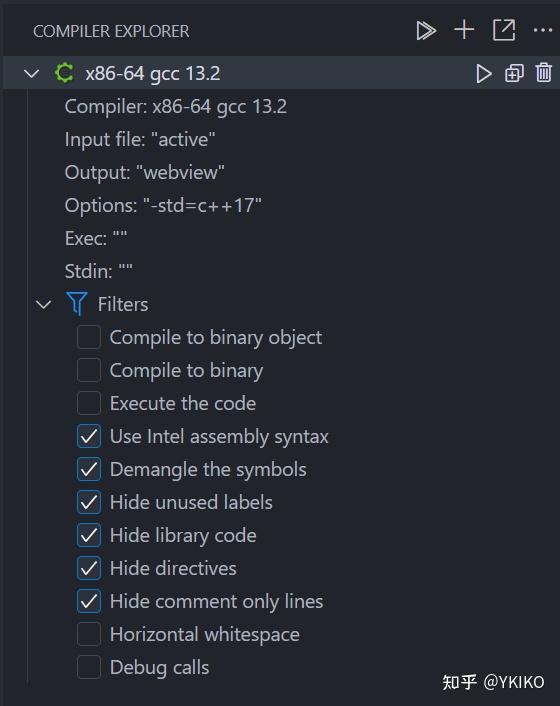
Let’s introduce them from top to bottom.

The functions of these three buttons are, in order:
Compile All: Compiles all compiler instancesAdd New: Adds a new compiler instanceShare Link: Generates a link based on the current compiler instance and copies it to the clipboard
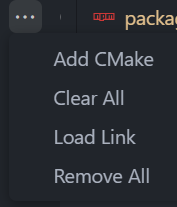
The functions of these four buttons are, in order:
Add CMake: Adds a CMake compiler instance (more details later)Clear All: Closes allwebviewpanels used for displayLoad Link: Loads compiler instance information based on the input linkRemove All: Removes all compiler instances

The functions of these three buttons are, in order:
Run: Compiles this compiler instanceClone: Clones this compiler instanceRemove: Removes this compiler instance
The following parameters are used to configure compiler instances:
Compiler: Click the button on the right to select the compiler versionInput: Select the source code file, default isactive(the currently active editor)Output: Output file for compilation results,webviewby defaultOptions: Compilation options, click the button on the right to open the input boxExecute Arguments: Arguments passed to the executableStdin: Buffer for standard inputFilters: Some options
Multi-file Support
You can add a CMake compiler instance using the Add CMake button, which can be used to compile multiple files.
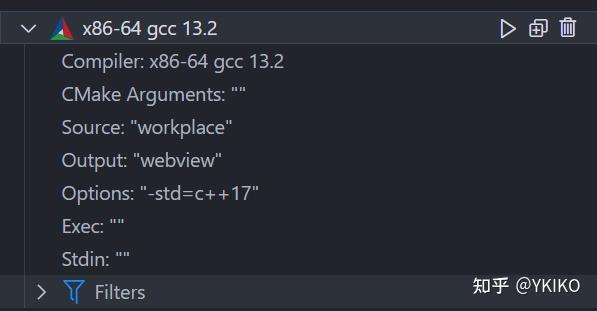
Most options are the same as for single-file compiler instances, with two additional ones:
CMake Arguments: Arguments passed to CMakeSource: Path to the folder containing CMakeLists.txt
Note that since multi-file compilation requires uploading all used files to the server, we will by default read all files (regardless of extension) in the directory you specify. Therefore, please do not specify folders with too many files for now. Options to allow users to filter out some files might be added later, but are not available yet.
User Settings
compiler-explorer.default.options: Default parameters when creating a compiler using the + sign
"compiler-explorer.default.options": {
  "type": "object",
  "description": "The default compiler configuration",
  "default": {
    "compiler": "x86-64 gcc 13.2",
    "language": "c++",
    "options": "-std=c++17",
    "exec": "",
    "stdin": "",
    "cmakeArgs": "",
    "src": "workspace",
    "filters": {
      "binaryObject": false,
      "binary": false,
      "execute": false,
      "intel": true,
      "demangle": true,
      "labels": true,
      "libraryCode": true,
      "directives": true,
      "commentOnly": true,
      "trim": false,
      "debugCalls": false
    }
  }
}
compiler-explorer.default.color: Used to specify the color for highlighting assembly code
"compiler-explorer.default.color":{
    "symbol": "#61AFEF",
    "string": "#98C379",
    "number": "#D19A66",
    "register": "#E5C07B",
    "instruction": "#C678DD",
    "comment": "#7F848E",
    "operator": "#ABB2BF"
}
compiler-explorer.default.url: The default link loaded when opening the extension, empty by default
"compiler-explorer.default.url": {
  "default": ""
}
Feedback
This extension is still in its early stages. If you encounter any problems during use, or have any suggestions, please feel free to leave a message and discuss it on GitHub. Alternatively, join the QQ group: 662499937.
https://qm.qq.com/q/DiO6rvnbHi (QR code auto-recognition)
Additionally, the Output window may provide some useful information, which you can check.
